LLM integration
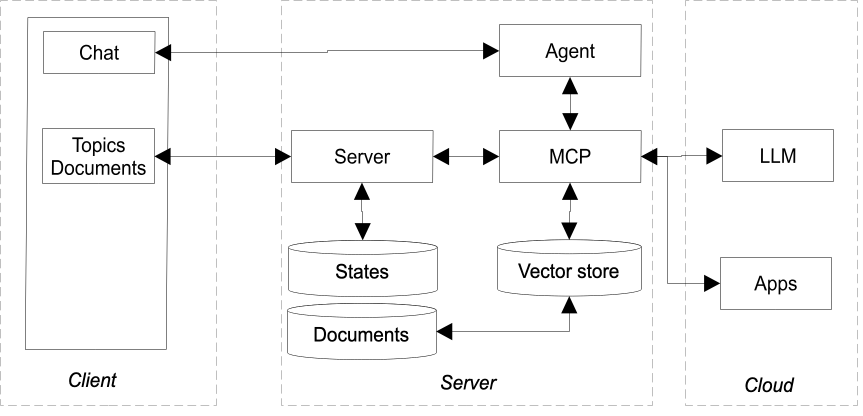
Large Language Models (LLMs) can be used to query and update information in the digital twin using natural language. To use the LLM integration you need to obtain an API key for one of the models that are supported. For more details see the configuration section. The diagram below shows how LLMs are integrated. Information can be stored as topics or documents, such as PDF manuals or photos. You can use the portal app to view or modify values and upload and view documents. The state of topics and documents are managed by the server.
MCP server
A Model Context Protocol (MCP) is an open protocol for connecting AI models like Claude or ChatGPT to internal systems. It exposes specific capabilities or tools to read or update data or to query documents. An AI application like Claude Desktop or OpenClaw can call on the MCP server to perform certain tasks like turning on a light switch. When the LLM calls on one of the tools, the MCP server makes a request to the server to query the value of a topic and returns the answer to the LLM. For asking questions about documents that are uploaded, the documents are converted to a special database called a vector store. After this one-time process has completed, the LLM can query the document to answer user questions. To integrate the MCP server with other apps you can use the following URL:
http://localhost:8030/mcp
To get a list of tools enter:
curl -sS -X POST http://localhost:8030/mcp \
  -H 'Content-Type: application/json' \
  -H 'Accept: application/json, text/event-stream' \
  -d '{"jsonrpc":"2.0","id":1,"method":"tools/list","params":{}}' \
  | grep '^data: ' | sed 's/^data: //' | jq .
Agent
Users can interact with the LLM via a chat session. For example, you can type 'what is the temperature of the living room' or 'turn of all lights in the garden'. The agent passes the message to the LLM that has been configured. The LLM calls the MCP server and selects which tool should be used. After invoking the tool, the answer is returned to the user. The agent provides the following description to the LLM:
You are a helpful assistant. Answer general knowledge questions directly from your training without using any tools. Only use tools when the user asks about specific devices or requests device control actions.  The current date and time is ${new Date().toISOString()} (local: ${new Date().toLocaleString()}).

To turn something on or off set the 'status' parameter.  Convert 'on' to 1, 'off' to 0. For colors, convert color names to and from an HSV array [hue, brightness, saturation] with values 0-255. Examples: 'red' = [0, 255, 255], 'yellow' = [50, 255, 255], 'green' = [85, 255, 255], 'blue' = [170, 255, 255], 'white' = [0, 0, 255]. When the user requests a color, convert HSV to a color name. For brightness, pass a single number 0-100 representing the percentage.

When the user asks to schedule a recurring action, use schedule_action with a cron expression. Cron format is: second minute hour day-of-month month day-of-week. Examples: "every day at 17:15" = "0 15 17 * * *", "every Monday at 9:00" = "0 0 9 * * 1", "every hour" = "0 * * * *", "every minute" = "* * * * *", "every 5 minutes" = "*/5 * * * *", "every 30 seconds" is not supported (minimum interval is 1 minute).

When the user asks for a one-time action at a specific date/time (e.g. "turn off the lamp at 17:00", "set heating to 20 tomorrow at 8:00"), use schedule_once_action with an ISO 8601 datetime string. The action will execute once and then be automatically removed.`,
The examples in the following sections have been created using the Cohere LLM. At the time of this writing, Cohere offers a free API for development purposes without a strict rate limit. To configure the use of Cohere create a .env file in the directory where the docker compose file is located and enter the following lines.
COHERE_API_KEY = <API KEY>
LLM=cohere
After making changes to the .env file redeploy the containers.
docker compose up -d